




CallLinks - call from your device
With CallLinks (Click-to-Call feature) you can click any phone number in your browser — and instantly transfer it to your Android or iPhone to make a call. Call with one tap!
Start now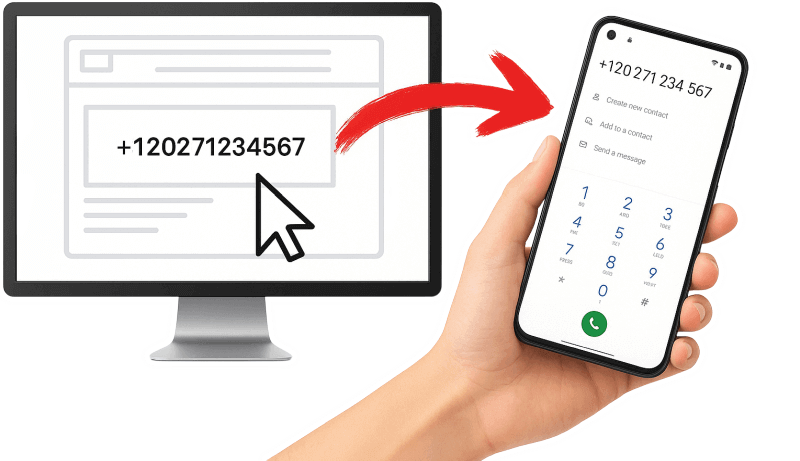
With CallLinks (Click-to-Call feature) you can click any phone number in your browser — and instantly transfer it to your Android or iPhone to make a call. Call with one tap!
Start now
Call a number in your browser in 3 easy steps
Install the CallLinks extension in your browser to activate the Click-to-Call feature.
Download the Android app or install it on iPhone, copy the Token, and paste it into the extension settings.
Just click the number in your browser — and it will instantly appear on your phone, ready to call.
View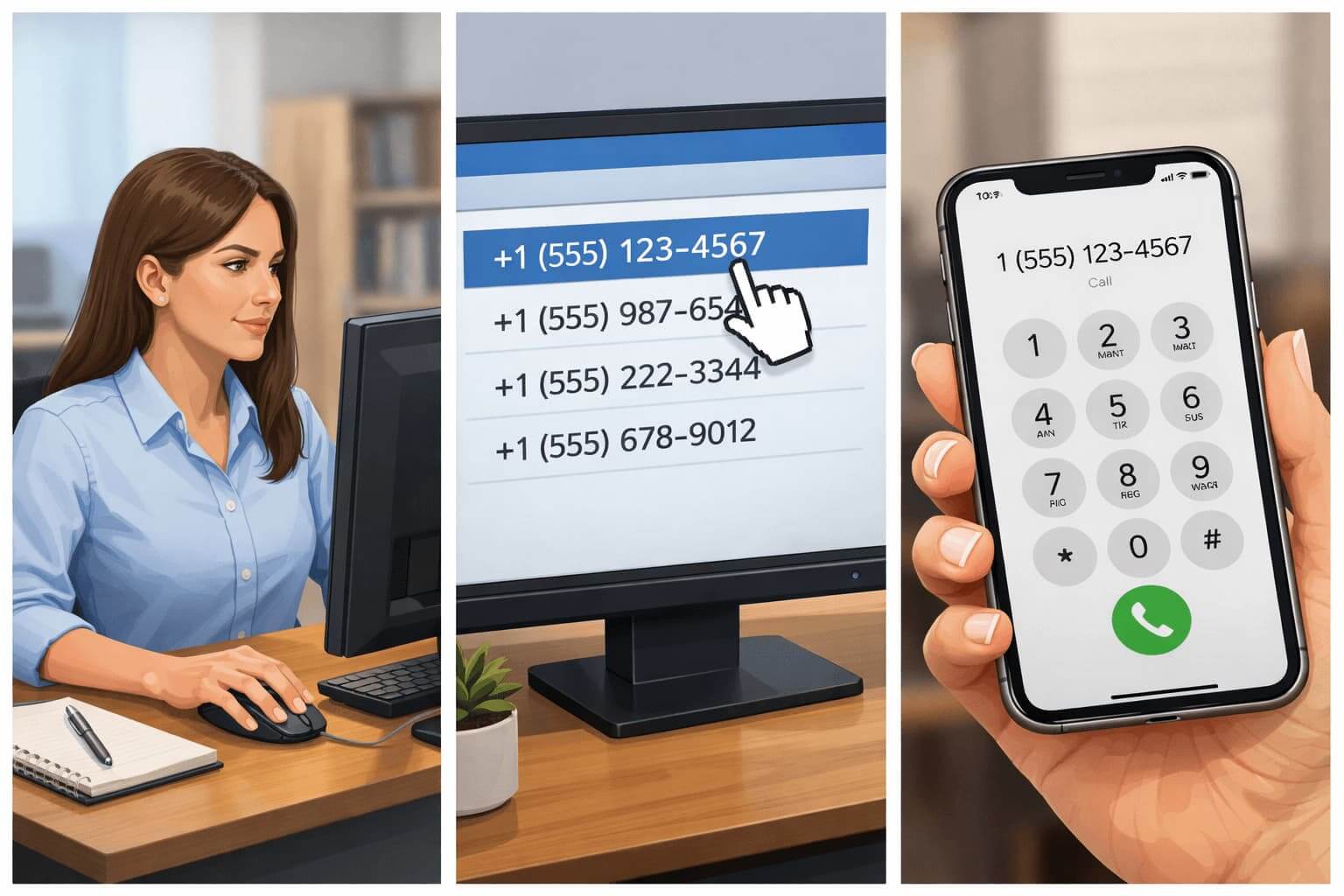
CallLinks is a real find for online store managers, call center operators, and anyone who dials dozens or hundreds of phone numbers daily from a monitor screen. Forget manual dialing: one click in the browser on a phone number — and the number is already ready to call on your phone. Just install the browser extension and Android app or iPhone version — and use it for free or for a small symbolic fee (for professional purposes)!
Click-to-Call is a feature that allows users to quickly make phone calls directly from a mobile phone. When a user clicks a button or link on a website, Click-to-Call automatically sends the number from the site and opens the dialer on the phone with the number pre-filled. The user can then simply confirm the call and start the conversation.
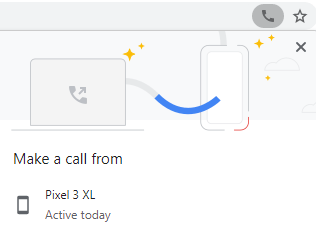 Google first introduced the Click-to-Call feature in Chrome 78 beta desktop version (2019). It worked successfully with Android mobile devices up to Chrome 116 (2023) — on both devices, you had to sign in to the same Google account. Support for Click-to-Call in Google Chrome was removed due to low demand (quote).
CallLinks was created to bring the Click-to-Call feature back to computers and smartphones for users who are accustomed to it and have not yet found working alternatives.
CallLinks is a solution that restores the capabilities of the disabled Click-to-Call feature in browsers (it uses an almost identical mechanism), adding several convenient improvements:
To create a connection between your computer and phone, you need to:
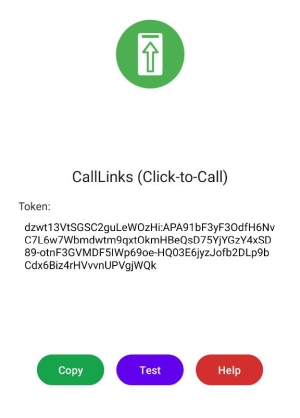
The CallLinks app for Android or iPhone can be downloaded from this site, or click the QR code icon in the installed browser extension. On first launch, the app will request permission for notifications — you must allow it. You can then test receiving notifications by pressing the TEST button (if the PUSH arrives, everything is OK!).
On the main screen of the app, your TOKEN (long unique key) will be displayed. Click COPY to copy it to the clipboard, and paste it into the browser extension settings. This is enough for the extension to know which device to send PUSH notifications to.
You can close the “CallLinks” app, but do not delete it from your phone!
If your TOKEN has changed, you will not be able to receive PUSH notifications. You must transfer the new key to the extension settings! TOKEN may change if:
CallLinks operates on a Freemium model. This means the basic version of the service is free and includes limited but fully functional features. Advanced capabilities and higher limits are available with a paid upgrade. For professional or intensive use, you can purchase additional credits — their cost is very modest.
Your current credit balance and available payment options are always displayed in the extension window of your browser.
If you encounter any difficulties setting up or using CallLinks, have issues with TOKEN, or questions about payment, don’t worry — our support team is always ready to help! Contact us by any convenient method found on this page, and we will promptly resolve your issue.